“आपकी सबसे important files, photos और documents हमेशा safe, हमेशा accessible और हमेशा आपके साथ — यही है Google Drive का powerful वादा।”
आपने कभी ऐसा सोचा है — laptop खराब हो गया और सारा ज़रूरी काम उसी में था? या किसी दोस्त को एक बड़ी file भेजनी थी लेकिन WhatsApp पर नहीं गई? या office में एक document पर सब मिलकर काम करना था लेकिन हर बार नई copy बनानी पड़ी?
इन सब problems का एक powerful और free solution है — Google Drive।
Google Drive आज दुनिया का सबसे popular cloud storage और collaboration platform है। 3 billion से ज़्यादा लोग इसे use करते हैं — और इनमें से बहुत से लोग इसकी सिर्फ 10% power ही use करते हैं। इस blog में हम आपको Google Drive का पूरा और powerful use सिखाएंगे — बिल्कुल step by step, आसान हिंदी में।
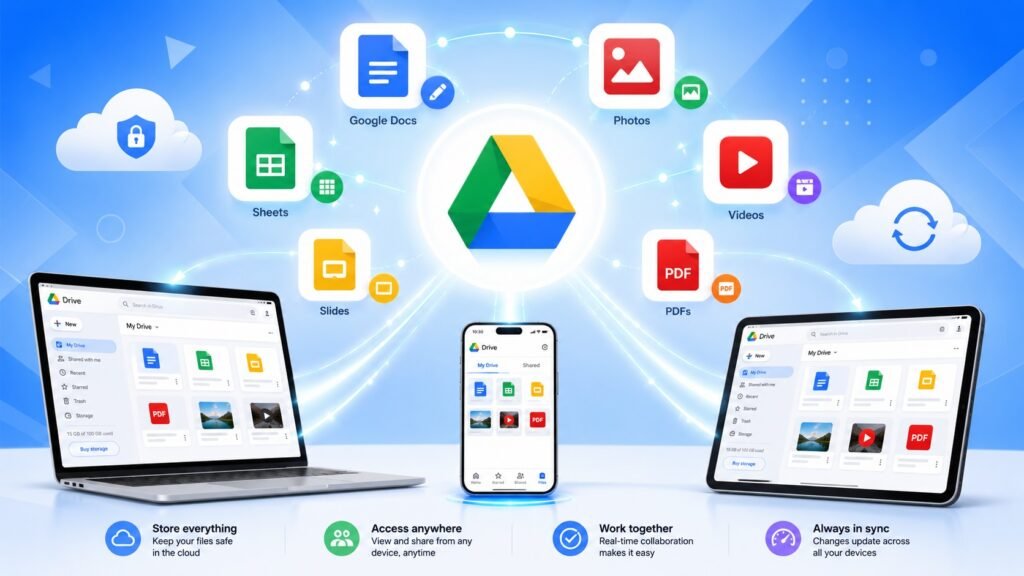
Table of Contents
कुछ ज़रूरी आँकड़े पहले जान लो
- G Drive के दुनिया भर में 3 billion+ active users हैं
- हर Google account के साथ 15 GB free storage मिलती है
- Google Drive पर हर दिन 2 billion+ files create और edit होती हैं
- 94% Fortune 500 companies Google Workspace use करती हैं
- Google Drive 100+ file types को directly open और preview कर सकता है
Google Drive क्या है? — Powerful और Simple जवाब
G Drive एक free cloud storage service है जो Google ने बनाई है। इसमें आप अपनी files — documents, photos, videos, PDFs, और बहुत कुछ — internet पर store कर सकते हो। एक बार store होने के बाद आप उन्हें दुनिया के किसी भी कोने से, किसी भी device से access कर सकते हो — बस एक internet connection चाहिए।
G Drive सिर्फ storage नहीं है — यह एक complete productivity platform है जिसमें शामिल हैं:
- Google Docs — Microsoft Word की तरह documents बनाओ
- Google Sheets — Microsoft Excel की तरह spreadsheets बनाओ
- Google Slides — Microsoft PowerPoint की तरह presentations बनाओ
- Google Forms — surveys और quizzes बनाओ
- Google Drawings — diagrams और illustrations बनाओ
और यह सब बिल्कुल free है।
Google Drive Setup कैसे करें — Powerful शुरुआत के Simple Steps
Computer पर G Drive:
- Browser में drive.google.com type करो
- अपने Gmail account से login करो
- बस — आपका Google Drive ready है
Phone पर G Drive:
- Play Store (Android) या App Store (iPhone) से Google Drive app download करो
- Gmail account से login करो
- App खुलेगा और आपकी सारी files तुरंत दिखेंगी
Desktop App (Automatic Sync के लिए):
- drive.google.com/drive/downloads पर जाओ
- G Drive for Desktop download करो
- Install करो — आपके computer पर एक Google Drive folder बन जाएगा
- उस folder में कोई भी file रखो — automatically cloud पर sync हो जाएगी
Google Drive का Use 1 — Files Upload और Store करना
Google Drive में files upload करना बेहद आसान है।
Computer पर:
- drive.google.com खोलो
- + New button click करो
- File Upload या Folder Upload select करो
- अपनी files choose करो — upload हो जाएंगी
- या simply files को drag और drop करो Drive में
Phone पर:
- G Drive app खोलो
- नीचे + (Plus) button दबाओ
- Upload select करो
- Phone की gallery या files में से choose करो
Powerful Tip:
एक बार में पूरा folder upload कर सकते हो। अपने सारे important documents का folder बनाओ और एक बार में Drive पर upload करो।
Google Drive का Use 2 — Files और Folders Organize करना
Drive में files बिना organization के रखने से कोई फायदा नहीं। Properly organize करो तो Drive और भी powerful बन जाती है।
Folders बनाओ:
- + New click करो
- New Folder select करो
- नाम दो — जैसे “Work Documents”, “Family Photos”, “College Notes”
Color Coding करो:
- किसी folder पर right-click करो
- Change Color select करो
- अलग-अलग folders को अलग colors दो — visually organize हो जाएगा
Star Important Files:
- Important file पर right-click करो
- Add to Starred click करो
- अब यह file Starred section में हमेशा आसानी से मिलेगी
Powerful Search Feature:
- ऊपर search bar में file का नाम type करो
- Drive instantly उस file को ढूंढ लेगा — चाहे वो कितनी भी पुरानी हो
- Photo में क्या है उससे भी search कर सकते हो — जैसे “receipt” type करो और सारी receipt photos मिल जाएंगी
Google Drive का Use 3 — Files Share करना
Drive की सबसे powerful और bright feature है इसका sharing system। बड़ी से बड़ी file भी seconds में share हो जाती है।
किसी को File Share करने के Steps:
- File पर right-click करो
- Share click करो
- उस व्यक्ति की email address type करो
- Permission choose करो:
- Viewer — सिर्फ देख सकता है
- Commenter — comment कर सकता है
- Editor — edit कर सकता है
- Send click करो — हो गया
Link से Share करना:
- Share click करो
- Copy Link click करो
- यह link WhatsApp, email या कहीं भी share करो
- Link वाला कोई भी उस file को access कर सकता है
Powerful Tip:
बड़ी video files WhatsApp पर नहीं जातीं — Drive पर upload करो और link share करो। कितनी भी बड़ी file instantly share हो जाएगी।
Google Drive का Use 4 — Google Docs से Documents बनाना
Google Docs, Drive का सबसे powerful और useful feature है। Microsoft Word की ज़रूरत नहीं — Google Docs free है और उससे भी ज़्यादा powerful है।
Google Docs के Powerful Features:
- Auto-save — हर second automatically save होता है, कभी काम नहीं जाएगा
- Version History — देखो document में पहले क्या था, कब बदला
- Real-time Collaboration — एक साथ कई लोग एक document edit कर सकते हैं
- Voice Typing — बोलो और document लिखता जाए
- Offline Mode — internet नहीं है तब भी काम करो
- Download as Word/PDF — जब चाहो .docx या .pdf में save करो
Students के लिए Powerful Use:
Group project में सब एक साथ एक Google Doc में लिख सकते हैं — अलग-अलग copies की ज़रूरत नहीं।
Google Drive का Use 5 — Google Sheets से Data Manage करना
Google Sheets Microsoft Excel का free और powerful alternative है। Business owners, students और professionals — सब के लिए equally useful है।
Google Sheets के Powerful Uses:
- Budget और expenses track करना
- Student marks और attendance manage करना
- Business inventory और sales records रखना
- To-do lists और project tracking
- Data analysis और charts बनाना
- Team के साथ real-time data share करना
Powerful Tip:
Google Sheets में Explore feature है — data select करो, Explore click करो और AI automatically charts और insights बना देगी।
Google Drive का Use 6 — Photos और Videos Backup करना
Google Drive आपकी यादों को हमेशा के लिए safe रखने का सबसे powerful तरीका है।
Phone से Photos Backup:
- Google Photos app install करो (यह Drive से connected है)
- Backup & Sync turn on करो
- अब phone की हर photo automatically Google पर backup होगी
- Phone खोया या टूटा — photos हमेशा safe रहेंगी
Powerful Feature — Google Photos:
- Automatically faces recognize करता है — family members की photos automatically sort होती हैं
- किसी भी photo को text से search करो — जैसे “birthday 2023” या “beach”
- पुरानी photos को automatically enhance करता है
- Memories feature — पुरानी यादें automatically दिखाता है
Google Drive का Use 7 — Offline Access करना
Internet नहीं है तो भी Google Drive की files access कर सकते हो — बस पहले से setup करना होगा।
Offline Access Setup:
- drive.google.com पर जाओ
- Settings (gear icon) click करो
- Offline option enable करो
- जो files offline चाहिए उन पर right-click करो
- Available Offline select करो
अब internet के बिना भी वो files open, edit और देख सकते हो। Internet आने पर automatically sync हो जाएंगी।
Google Drive का Use 8 — Different File Types Open करना
Google Drive का एक बेहद powerful और underrated feature यह है कि यह 100+ file types को directly open कर सकता है — बिना कोई software install किए।
- PDF files — directly Drive में open करो
- Word (.docx) files — बिना Microsoft Word के open और edit करो
- Excel (.xlsx) files — बिना Excel के open करो
- ZIP files — contents देखो बिना extract किए
- Images — सभी formats support होते हैं
- Videos — directly Drive में play करो
- PSD files — Photoshop files preview करो
Google Drive Tips और Tricks — Powerfully Smart Use के लिए
- Keyboard Shortcut — Drive में कहीं भी Shift + Z दबाओ — file को multiple folders में add करो बिना copy किए
- Quick Access — Drive automatically वो files ऊपर दिखाता है जो आप अक्सर use करते हो
- Storage देखो — one.google.com/storage पर जाओ और देखो कितनी storage use हो रही है
- Drive Search Operators — type करो type:pdf और सिर्फ PDFs दिखेंगी, type:document और सिर्फ Docs दिखेंगे
- Third Party Apps — Drive को DocuSign, Slack, Zoom जैसी apps से connect करो
Google Drive Free vs Paid Plans
| Feature | Free Plan | Google One (Paid) |
|---|---|---|
| Storage | 15 GB | 100 GB से 2 TB तक |
| Price | बिल्कुल Free | ₹130/month से |
| Sharing | Unlimited | Unlimited |
| Collaboration | Full Access | Full Access |
| किसके लिए | Students, Personal | Heavy Users, Business |
Powerful Tip:
15 GB ज़्यादातर लोगों के लिए काफी है। अगर storage कम हो तो पहले Drive में unnecessary files delete करो — काफी space मिल जाएगा।
Conclusion — Google Drive को Powerfully Use करो और अपनी Digital Life को Bright और Smart बनाओ
Google Drive सिर्फ एक storage tool नहीं है — यह आपकी digital ज़िंदगी का एक powerful और ज़रूरी हिस्सा है। Files safe रखना हो, team के साथ collaborate करना हो, photos backup करनी हों, या documents share करने हों — Google Drive हर काम में आपका सबसे powerful और reliable साथी है।
और सबसे अच्छी बात — यह बिल्कुल free है। आज ही drive.google.com पर जाओ, अपनी important files upload करो और उस peaceful feeling को महसूस करो जब आपको पता हो कि आपका सारा ज़रूरी data हमेशा safe है — चाहे कुछ भी हो जाए।
क्या आप Google Drive use करते हैं? कौनसा feature आपको सबसे ज़्यादा helpful लगा? नीचे comment में ज़रूर बताएं — आपकी बात दूसरों की भी मदद कर सकती है!
FAQs — अक्सर पूछे जाने वाले सवाल
Google Drive बिल्कुल free है क्या?
हाँ! हर Google account के साथ 15 GB free storage मिलती है जो Gmail, Drive और Google Photos में share होती है। ज़्यादातर लोगों के लिए यह काफी होती है। ज़्यादा storage चाहिए तो Google One plan ₹130/month से शुरू होता है।
क्या Google Drive पर data safe रहता है?
हाँ, Google Drive बेहद safe है। Google military-grade encryption use करता है और आपका data multiple servers पर backup रहता है। Strong password और two-factor authentication ज़रूर enable करो — यही सबसे powerful security habit है।
Google Drive और Google Photos में क्या फर्क है?
Google Drive general purpose storage है — सभी types की files रख सकते हो। Google Photos specifically photos और videos के लिए है और इसमें face recognition, memories और smart search जैसे powerful features हैं। दोनों एक ही 15 GB storage share करते हैं।
Internet नहीं है तो Google Drive use कर सकते हैं?
हाँ! Offline mode enable करके आप बिना internet के भी files access और edit कर सकते हो। Internet आने पर automatically sync हो जाता है। यह feature पहले से setup करना होता है।
Google Drive पर कितनी बड़ी file upload हो सकती है?
Single file maximum 5 TB तक upload हो सकती है — यानी practically कोई limit नहीं। Videos, large PDFs, software files — सब कुछ easily upload हो जाता है।
Google Docs में बनाई file Microsoft Word में open होगी?
हाँ! Google Docs की file को File > Download > Microsoft Word (.docx) से download करो — perfectly Word में open होगी। इसी तरह Sheets को Excel में और Slides को PowerPoint में download कर सकते हो।
Read Our Blog On: Cloud Storage